Loading a template populates all the fields on the Field Ticket form with the values from the selected template.
|
note |
If you filled in any fields on the Field Ticket form prior to loading a template, all those values will be replaced, including the Ticket number. |
Once a template has been loaded, you can modify any field on the Field Ticket form.
To load a Field Ticket template:
- Open the Field Ticket form. For details, refer to Opening Blank Field Ticket Forms, page 1.
A Field Ticket pop-up window opens, offering the option to Create a new Field Ticket or to Create Field Ticket from Template.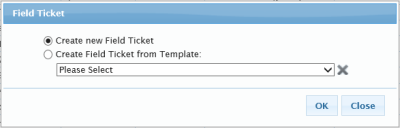
- Select the template you want to load from the Create Field Ticket from Template drop-down menu.
- Click OK.
All the details that were saved as part of your template are loaded into your form. Note that the Ticket No field is blank, and all dates on the form are set to the current date. - Continue with adding other details to the form. For more details, refer to Filling in Field Ticket Forms, page 1.